How the EventSlide photo wall works
Three moments, six gestures: you set up, your guests send, everything shows on the venue’s screen and you stay in charge. Here is each step, without jargon.
Three people, one wall
EventSlide thinks of everyone at the party. Each of them needs very little.
The guest
They scan the QR code, pick a photo or a short video, add a caption if they feel like it, and send. No app, no account, no email. One thumb is enough.
What it takes: their phone and the QR code.
You, the host
You set the evening up, then you decide what is shown: nothing reaches the screen without your approval. You can moderate one-handed, standing up, drink in hand.
What it takes: a browser, on a computer or a phone.
The room
The wall plays full screen and runs by itself during the party, with no keyboard or mouse. It is made to be watched from across the room.
What it takes: a screen or projector, and a device that shows a web page.
Before the party: set up your evening
A name is enough to start. Everything happens in the browser, there is nothing to install.
Create the event
A name is enough to start. Then you choose the wall’s language, its layout out of seven, the evening’s look and, if you like, a few photo missions for your guests.
Print the QR code
The event page shows the QR code, an invitation link and a six-character code. Print the QR code and put it on the tables, or show it on screen.
Open the event to guests
When the evening starts, a button on the event page opens it to guests. You can also give it an opening time. Until then it is a draft: the QR code lets nobody in and there is no wall to show.
Test before the guests arrive. Scan your own QR code with your phone, ideally from the venue’s Wi-Fi. It is the best way to find a problem before the party does.
Three settings worth a thought
Moderation
By default you approve every photo yourself: the right choice whenever colleagues or extended family are in the room. Publishing automatically suits a small party among close friends, and the app warns you when you choose it.
Retention
Nothing is deleted unless you ask, and your guests are told so. If you set a retention period, the album is erased that many days after the event closes: export it first.
Opening and closing
You can schedule an opening time and a closing time, or do either yourself. Times are read on your own computer’s clock: 6 pm means 6 pm where the party is. Closing the event stops uploads without deleting anything.
During the party: your guests send their photos
For guests it comes down to three gestures: scan, pick, send.
Scan the QR code: no app, no account
The guest opens their phone’s camera and points it at the QR code. A page opens in their browser. They can give a first name if they feel like it; it is not required.
- The QR code will not scan? A six-character code lets them join by hand. It is also shown in a corner of the wall, for latecomers.
- Before their first photo, the guest reads a short notice: who will see their photos, whether you check them before the screen, how long they are kept and how to have one removed. It is written from your event’s own settings, in the guest’s language.
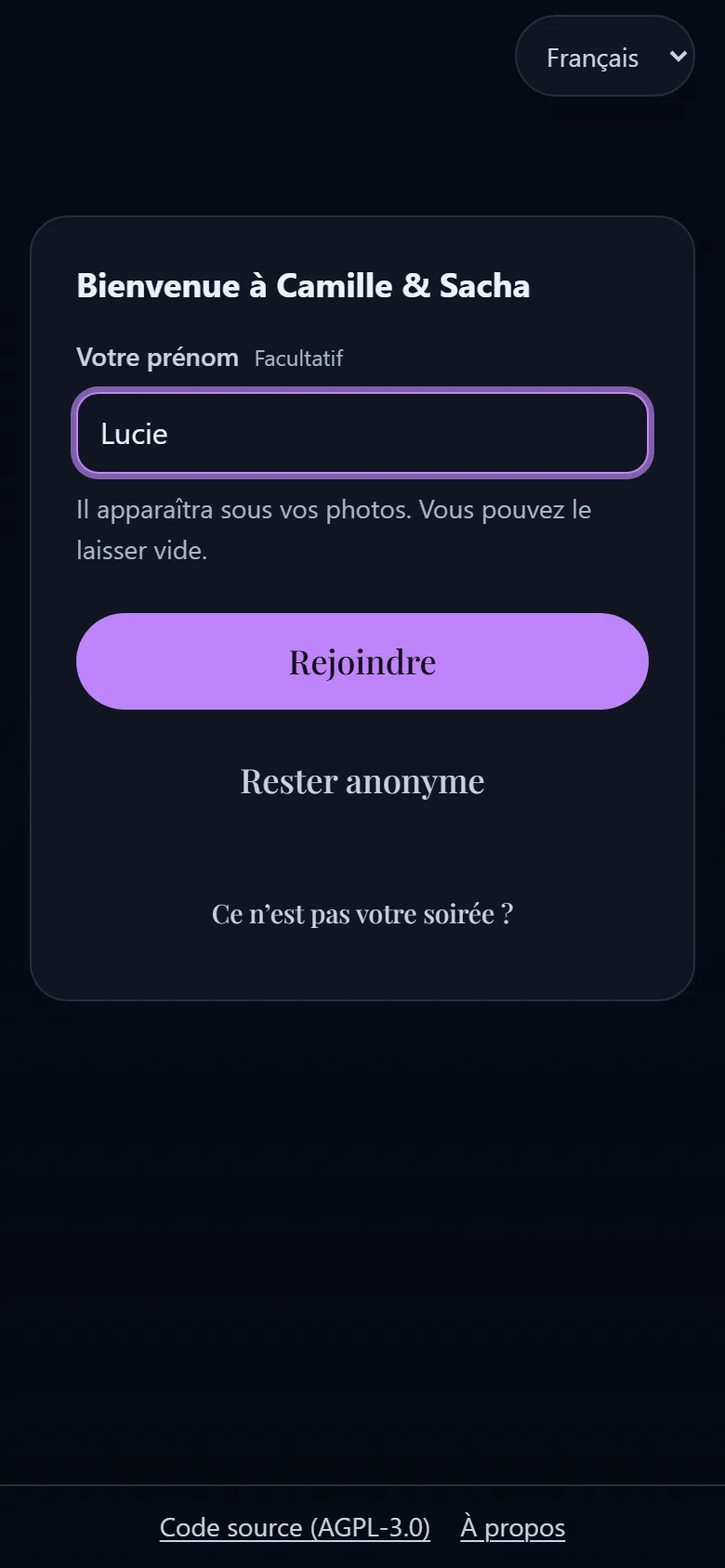
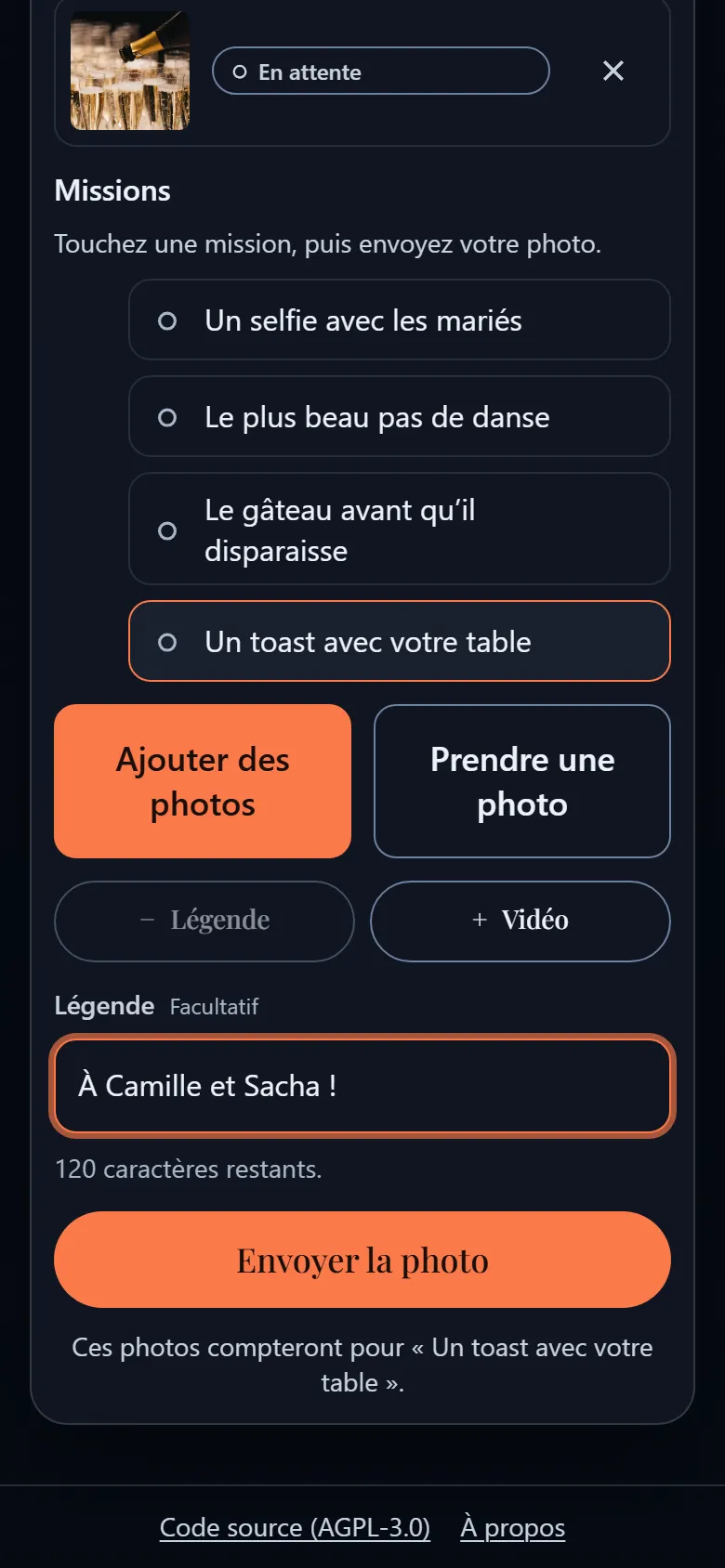
Send photos and 15-second videos
The guest picks a photo or a short video, types a caption if they want, ticks a mission if you set some, then sends. Their uploads stay visible on their phone, including those waiting for your approval.
- Videos last 15 seconds. They are converted to play on the wall, and play without sound: a room already has its music.
- GPS position and device details are erased from every photo as soon as it arrives.
Video · 15 seconds · no sound
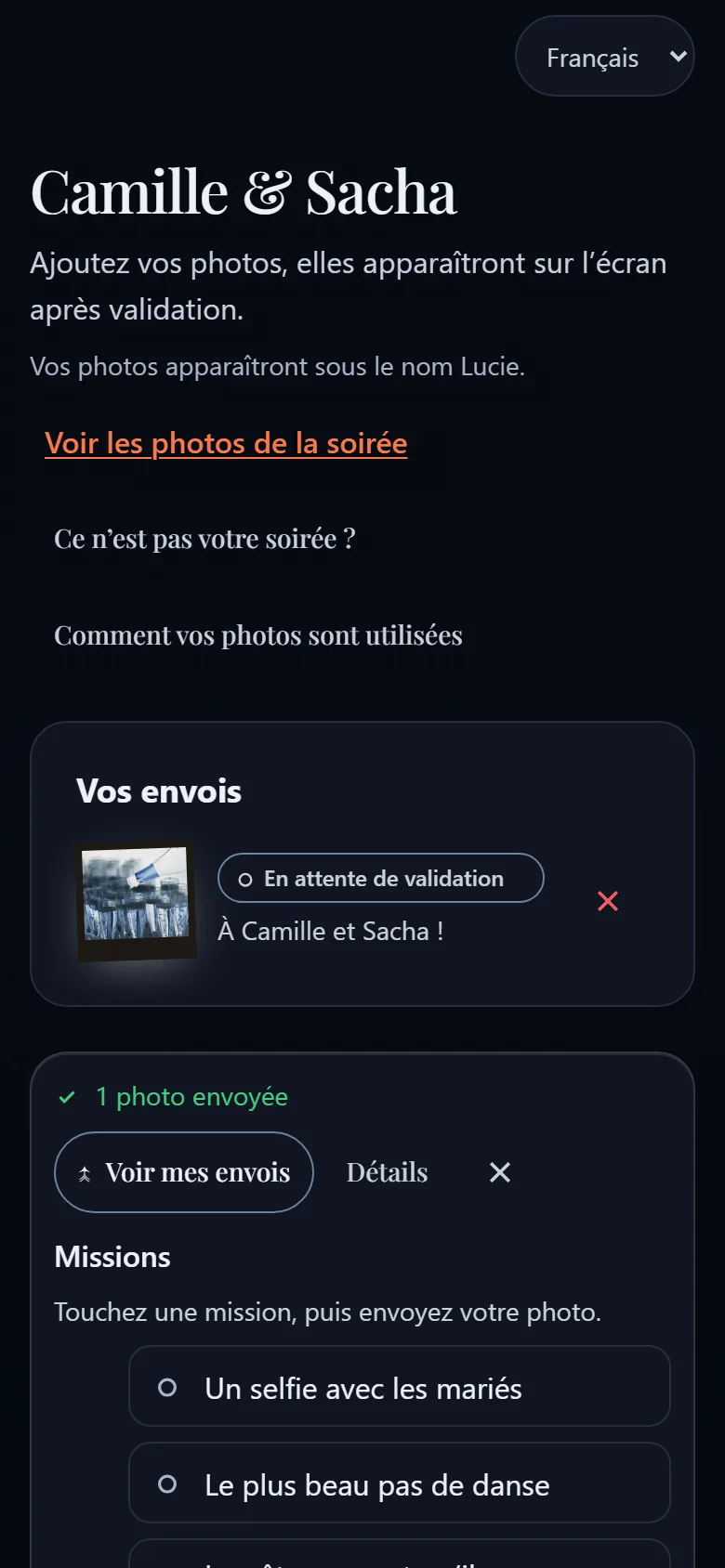
When the network is weak
A village hall’s Wi-Fi is not always brilliant. A photo picked with no signal is queued on the phone, then sent again as soon as the network is back, even if the guest has closed the page.
EventSlide can also install itself as an app on the phone, if the guest allows it: it then keeps working when the network does not.
On site: the wall, full screen
The wall is a plain web page. You open it on the screen or projector, full screen, and that is it.
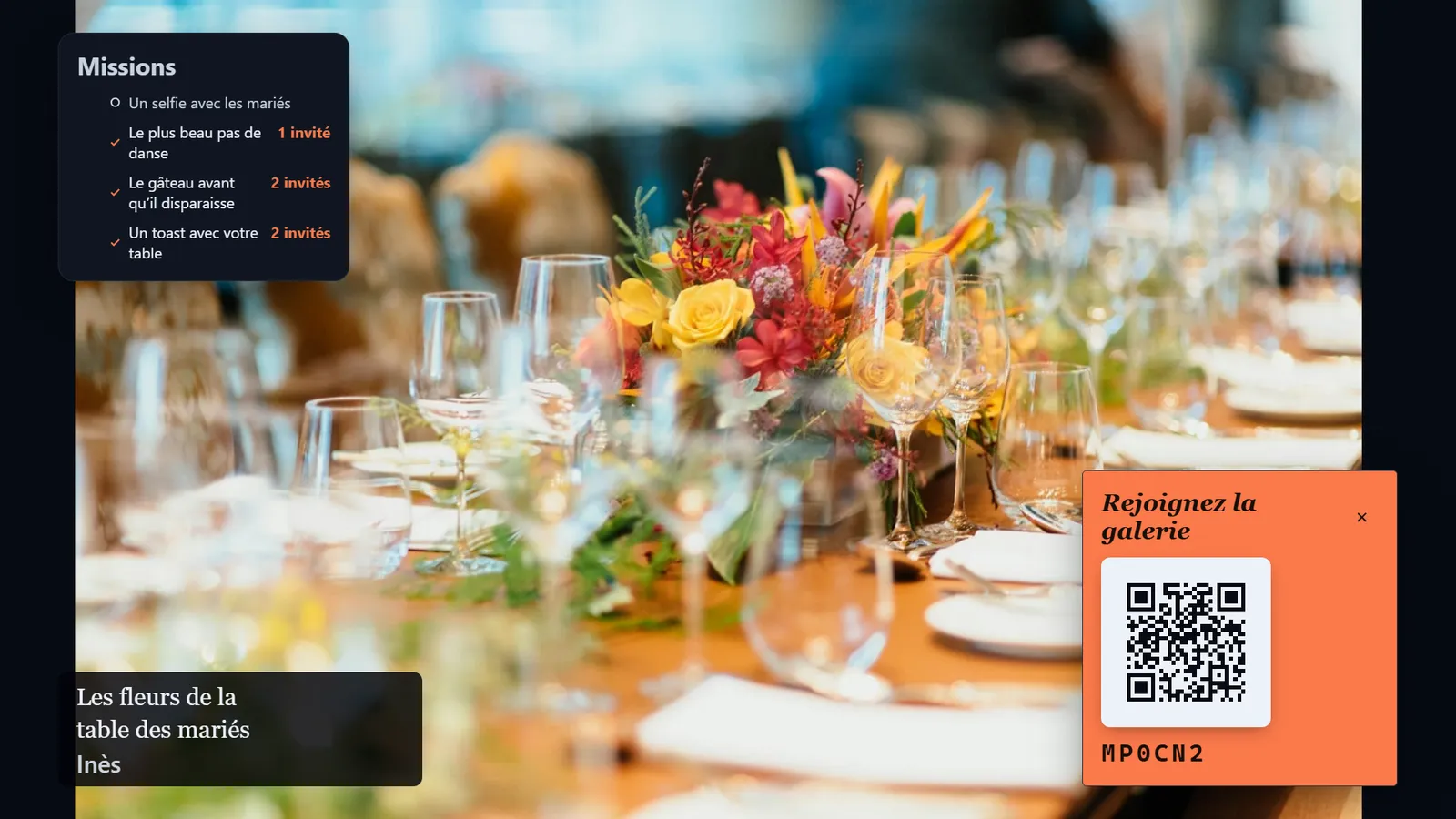
Start the wall
On the computer connected to the screen, open the event’s display page and make it full screen. Approved photos arrive by themselves, with no keyboard or mouse afterwards.
Let it run
Each photo shows with its caption and the guest’s first name. A code to join the party stays in a corner. The wall is built to run unattended through an eight-hour evening.
What you need in the way of equipment
A screen or a projector
A television, a monitor or a projector: any screen you can plug in.
A device that shows a web page
A laptop, a mini PC or any other device that can show a web page full screen.
Internet on site
With our hosted service, the wall depends on the venue’s internet connection. Check it before the party.
Something to moderate with
Your phone or your computer, with a browser: nothing else.
Want the wall to keep playing even if the venue’s network drops? That takes a machine installed on site: see host EventSlide yourself.
You moderate, the screen shows
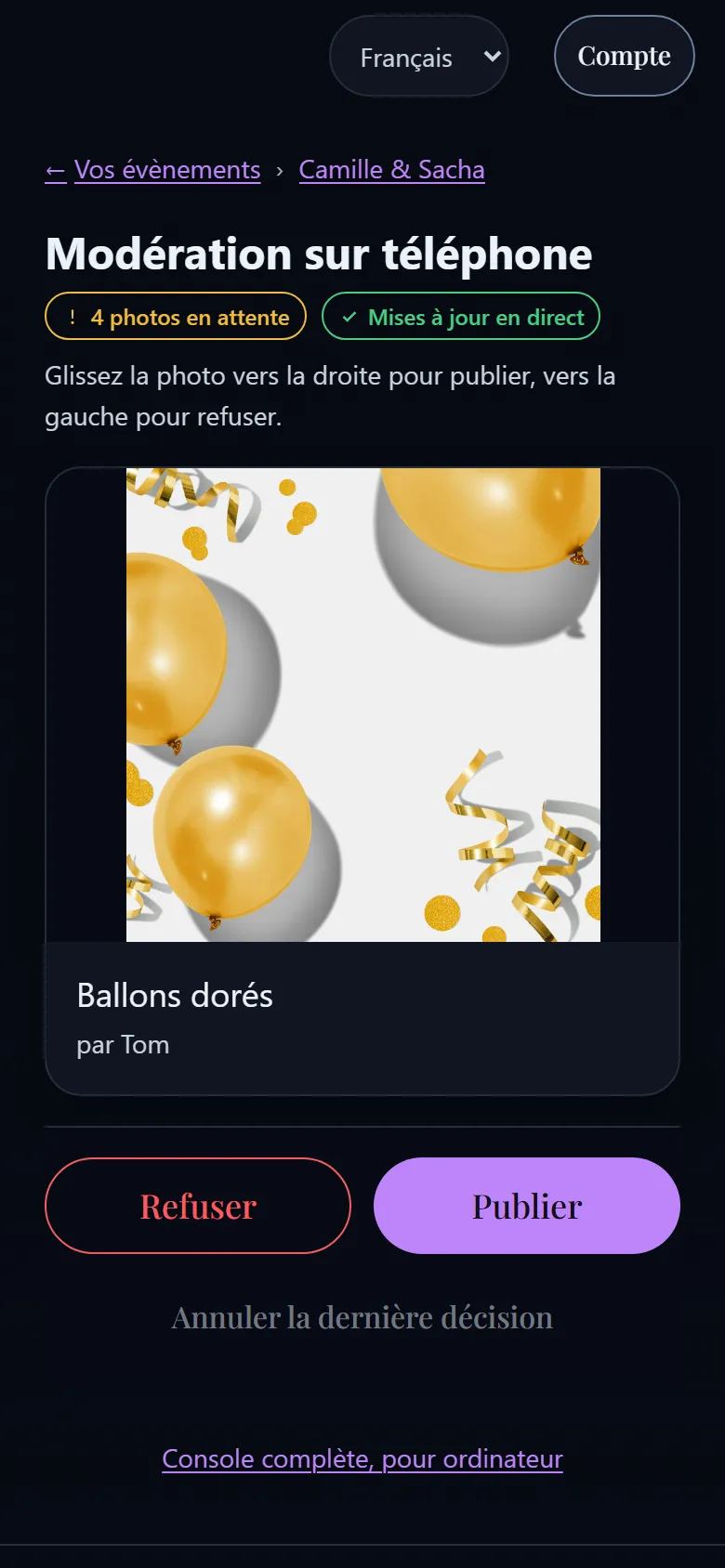
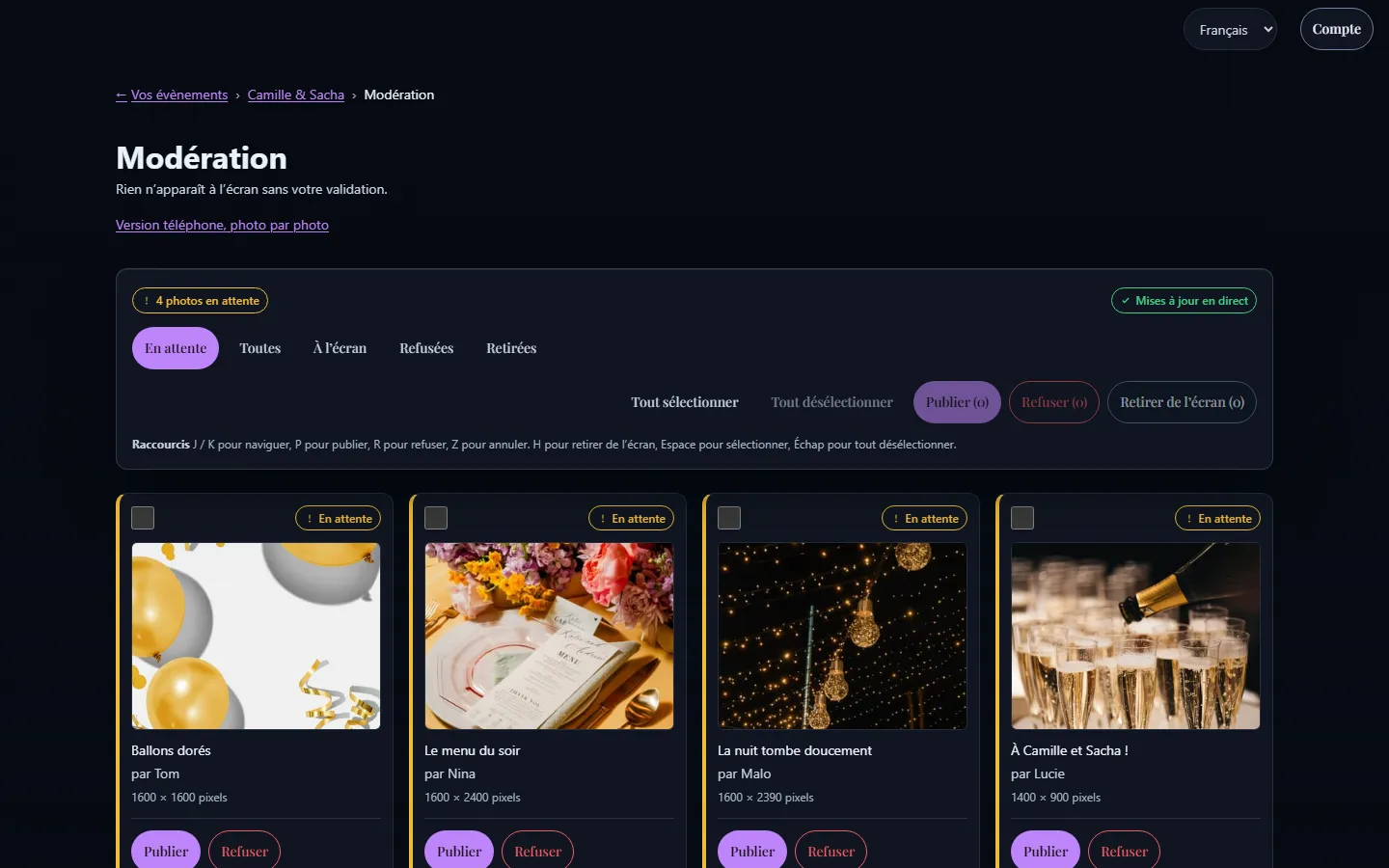
Every photo waits in a moderation queue. Nothing reaches the screen until you have approved it: two hundred people are watching that screen, so that is not a setting to leave to chance.
On a phone you see one photo at a time: swipe right to publish it, left to refuse it. On a computer you get the whole queue and keyboard shortcuts. New photos arrive in it by themselves.
Swipe right to publish, left to refuse.
Keyboard shortcuts on a computer
- JKmove through the queue
- Ppublish
- Rrefuse
- Zundo
A refused photo appears neither on the wall nor in the shared gallery, and counts toward no mission.
Seven layouts for the wall
You choose how photos are shown, to suit the room and the mood of the evening. Here are all seven, as your guests will see them.
One photo at a time
One whole photo, large, with a slow zoom, its caption and the guest’s first name. The simplest, the easiest to read from afar.
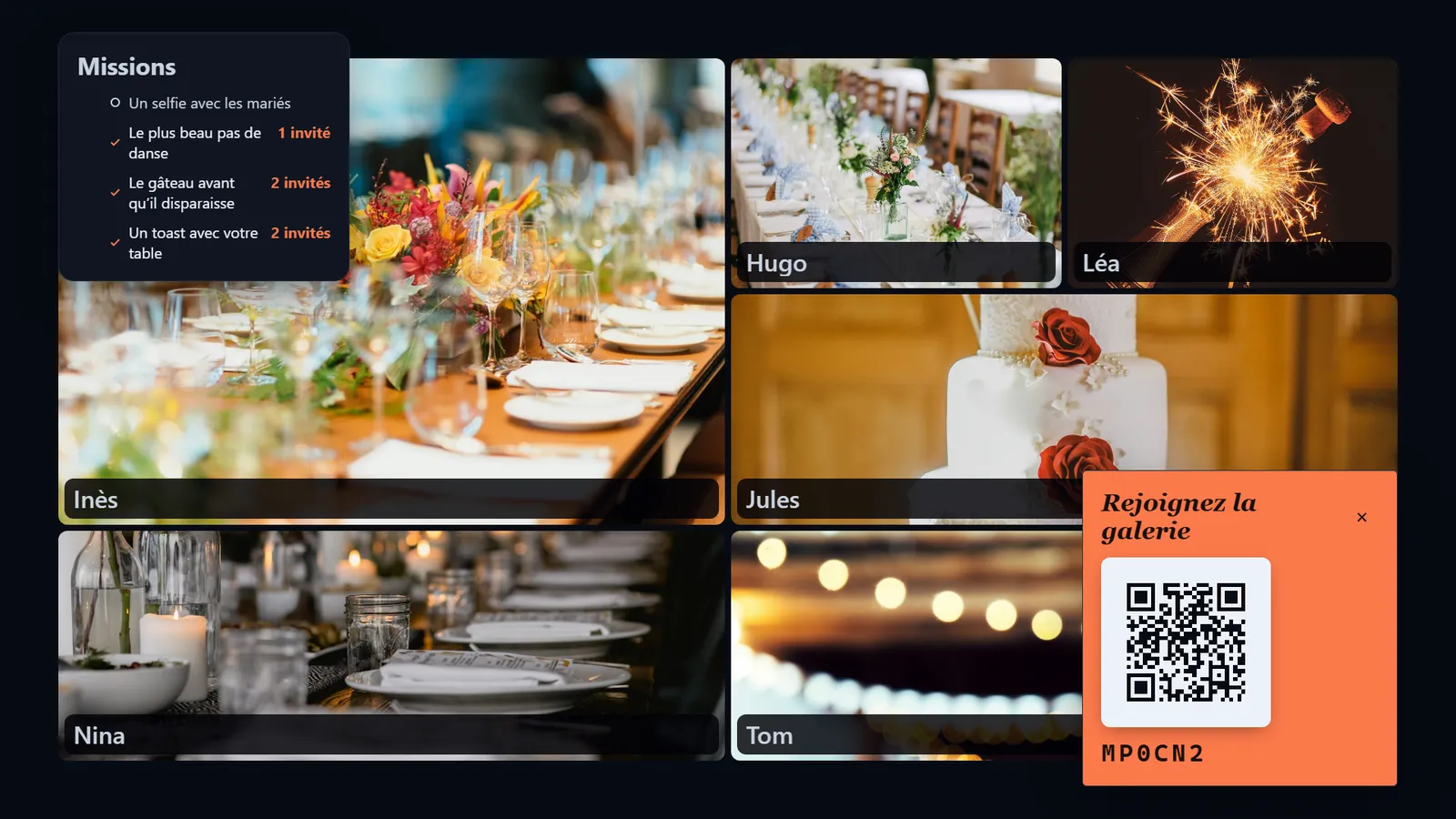
Mosaic
Several photos at once, in a grid, each with its sender’s first name.
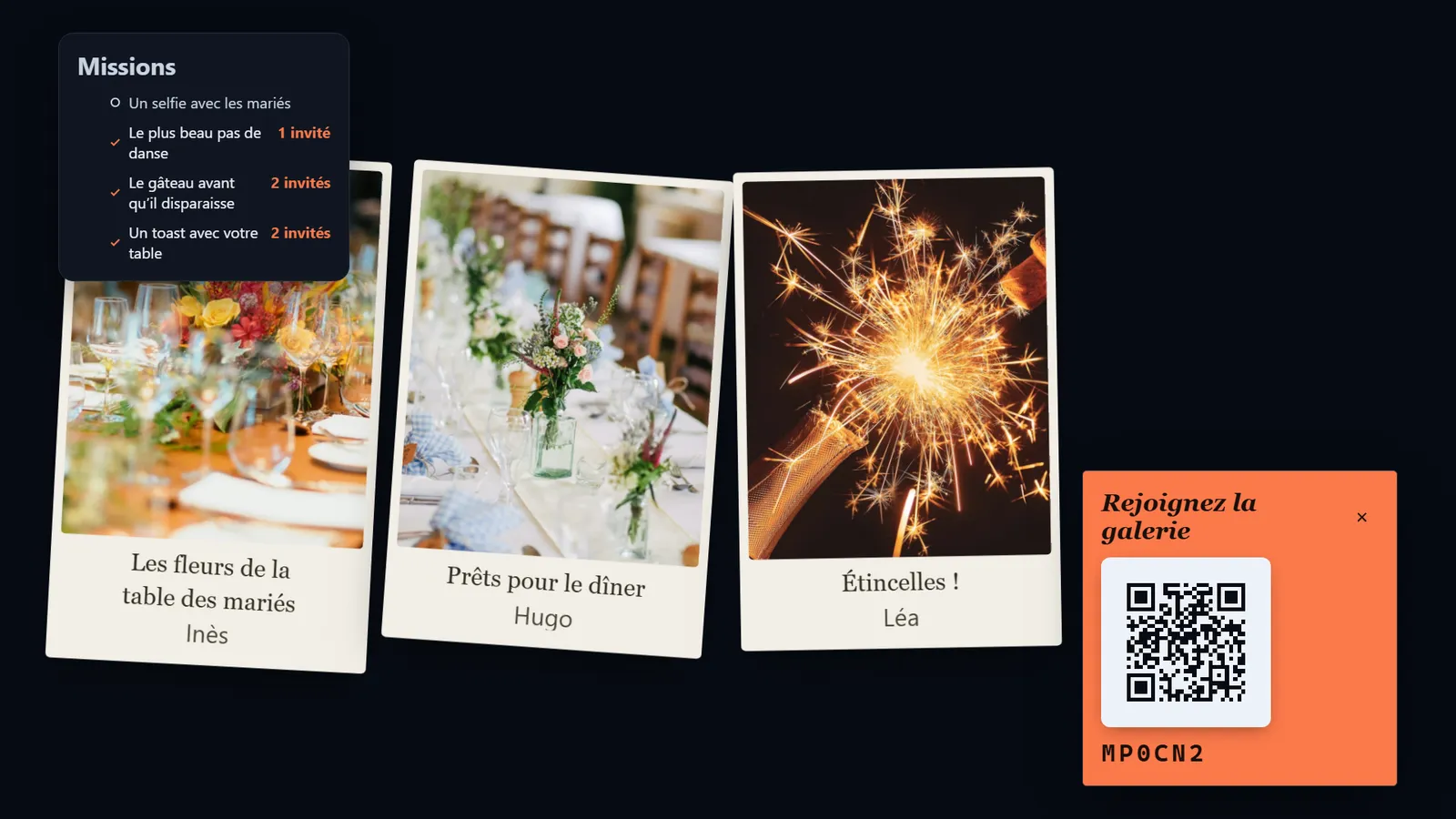
Polaroid
Slightly tilted prints with their captions, as if scattered on a table.
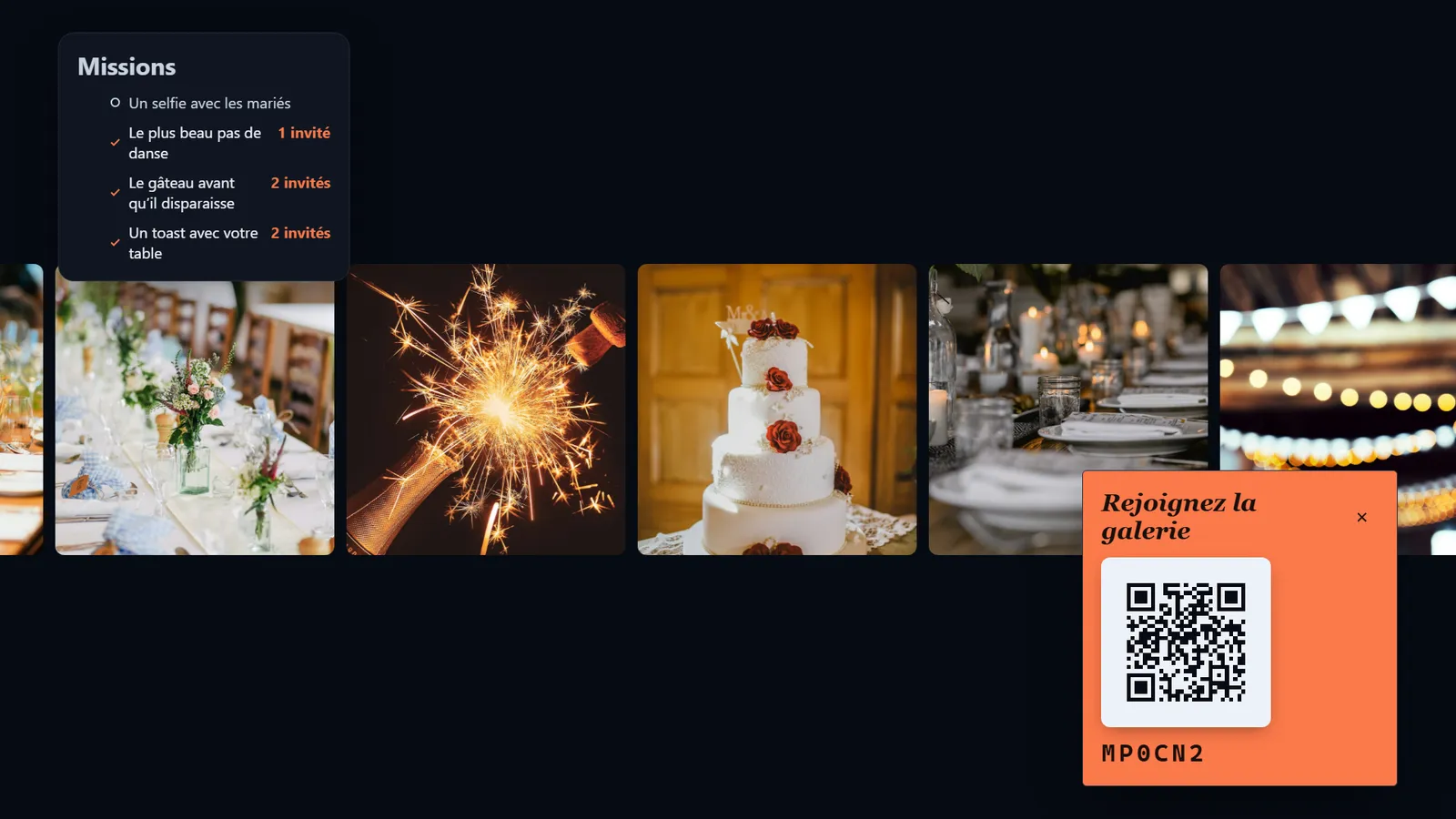
Film strip
A strip of photos scrolling across the screen.
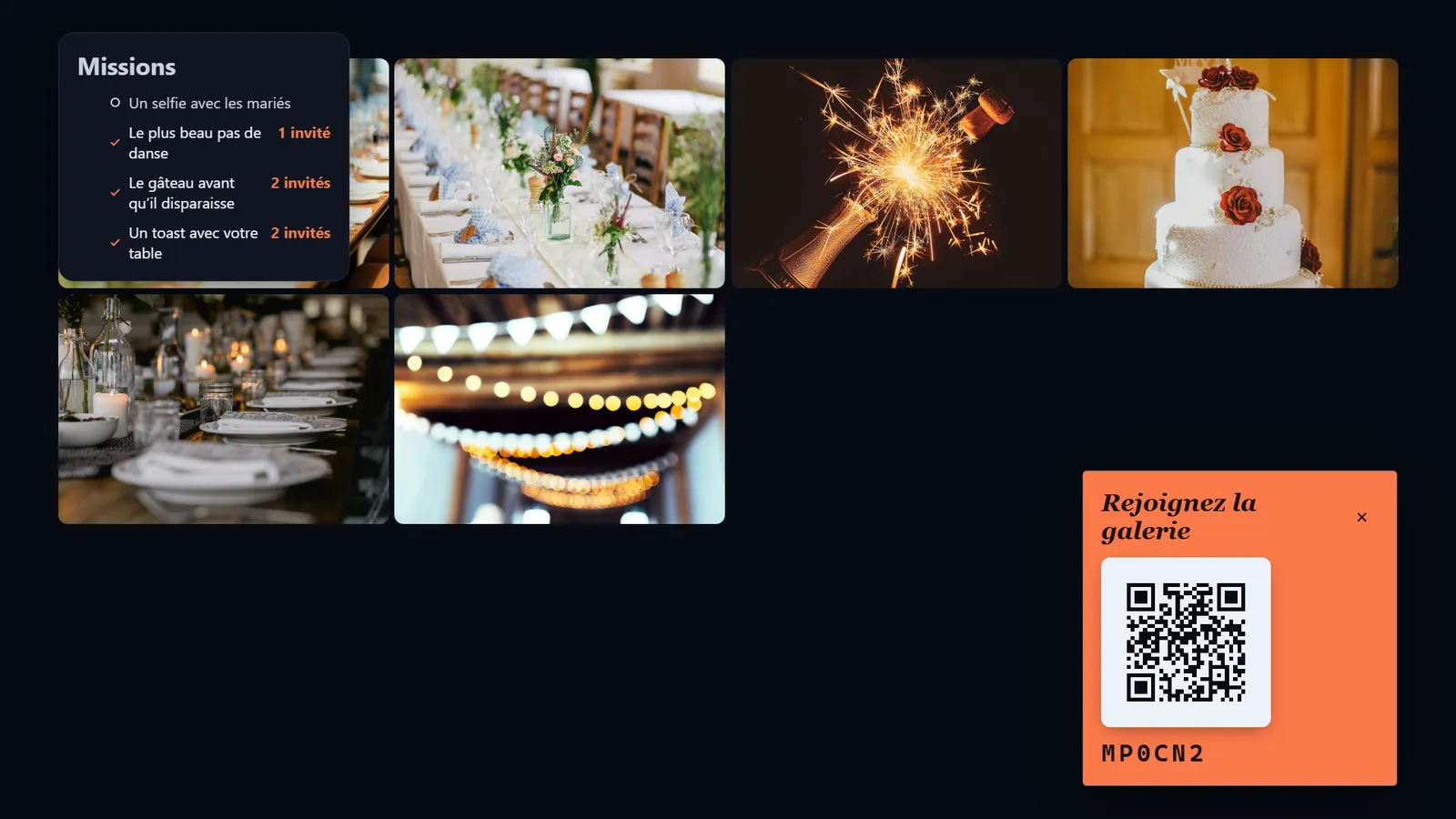
Collage
A collage that fills up little by little as photos arrive.
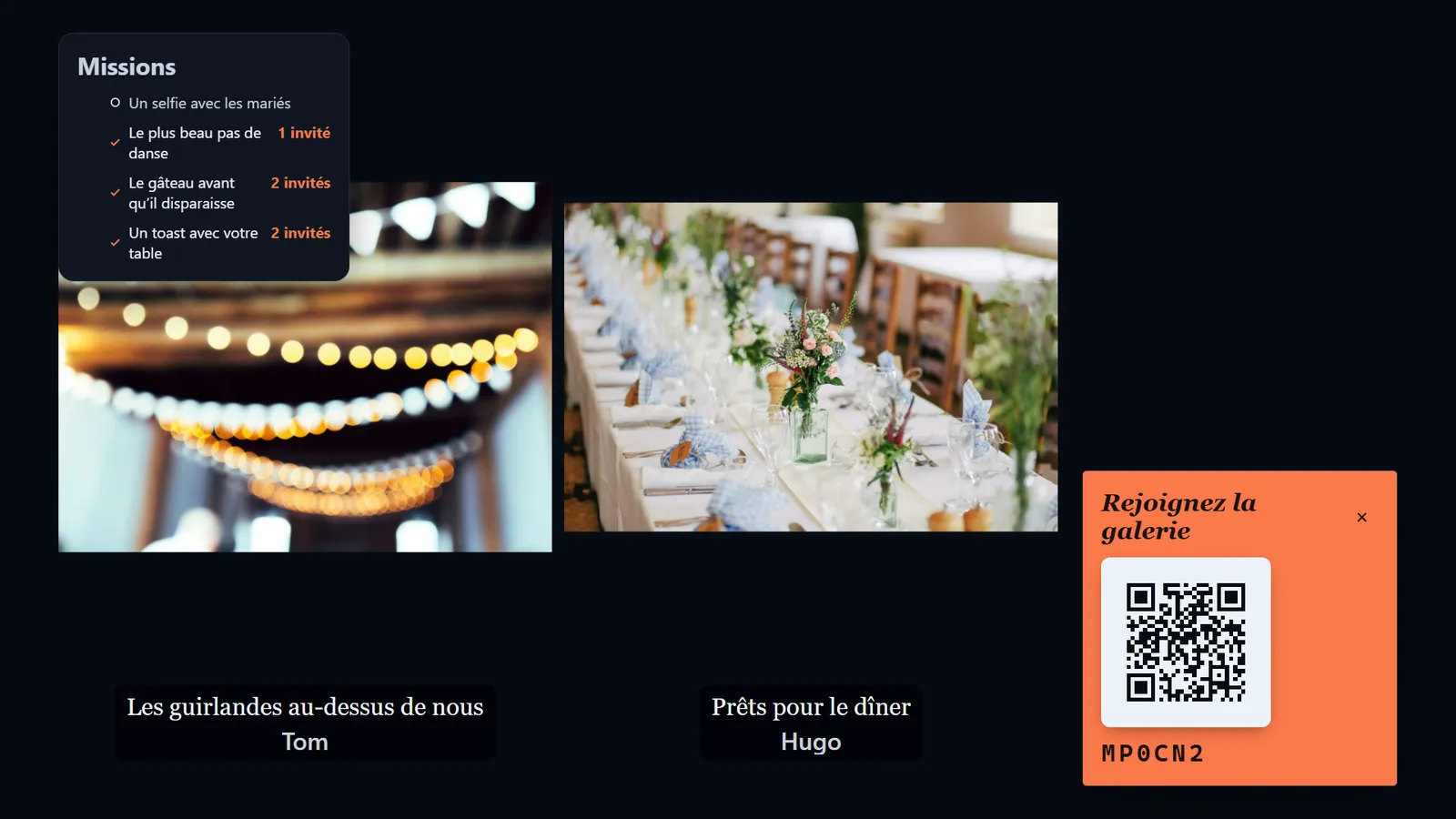
Split screen
Two photos side by side, with their captions.
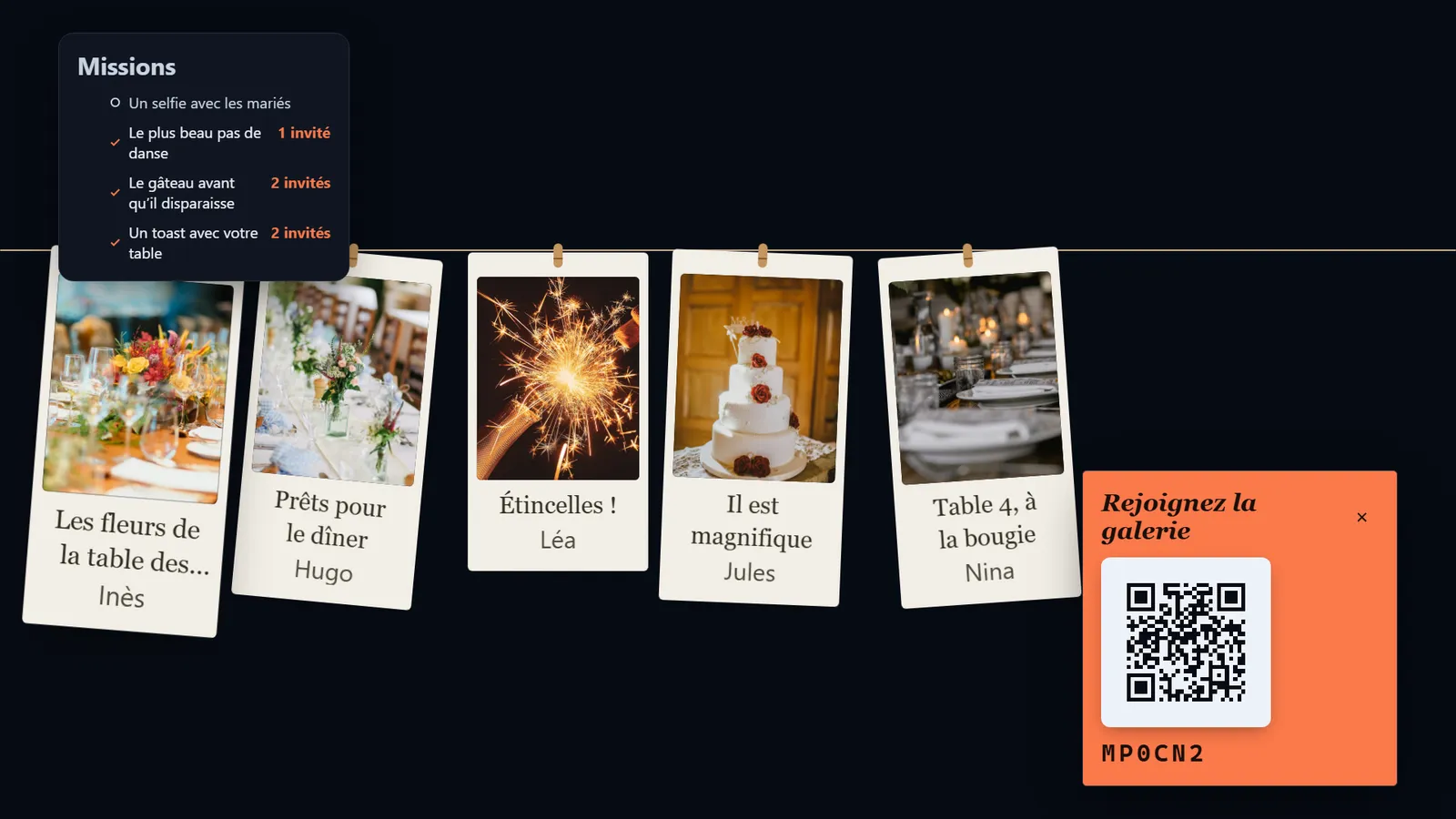
Clothesline
Prints hung by pegs on a line, like laundry drying.
In every layout, a code to join the party stays in a corner, and so does the missions panel if you set some.
A look for every evening
Each evening has its own visual style: a look picked from several, or a custom one you put together yourself.
With a custom look you choose an accent colour, a pair of fonts and a frame style. The wall takes all three, and your guests’ phones take the colour.
The colour is checked so that it stays readable from ten metres away: a colour that would fail the test is refused rather than shown.
Photo missions and reactions
The cheapest way to get more photos: stop asking guests to decide what is worth sending. You write four or five prompts on the event page, and they become a checklist on every guest’s phone.
A guest taps a prompt before sending: one tap, no extra screen. The wall shows the list in a corner with what has been answered so far, and does not flash each time someone uploads: it is a scoreboard for the room.
- A mission is answered when a published photo names it. A photo you refuse therefore never counts.
- A prompt can be “for each guest” or “once for the evening”: a selfie with the couple for everybody, the first dance just once. You choose prompt by prompt.
- There is no leaderboard and no score: each guest sees only their own list.
Example missions
- The best dance move
- The cake before it disappears
- A toast with your table
- A selfie with the couple
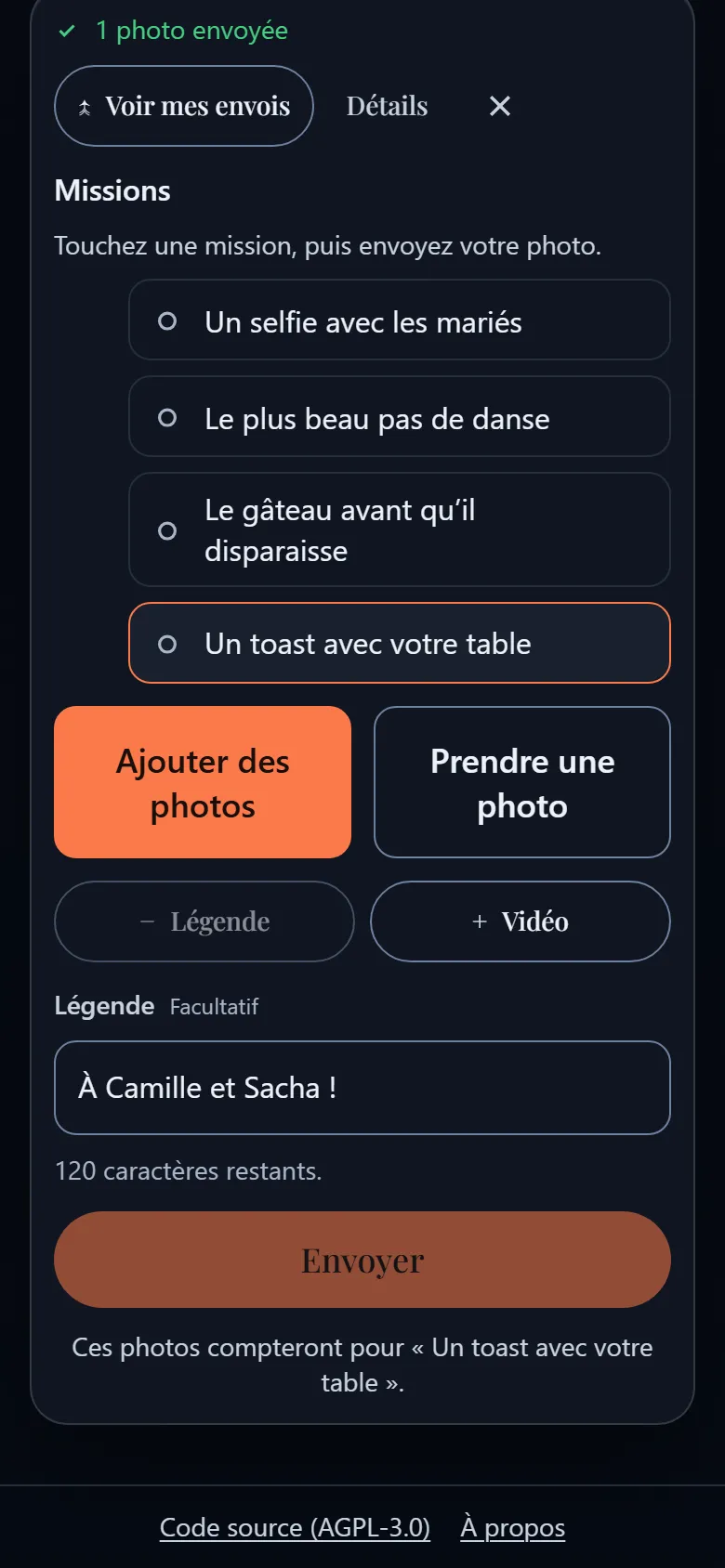
Prompts are content, not interface: they are shown exactly as you wrote them, in the language of your evening.
Reactions
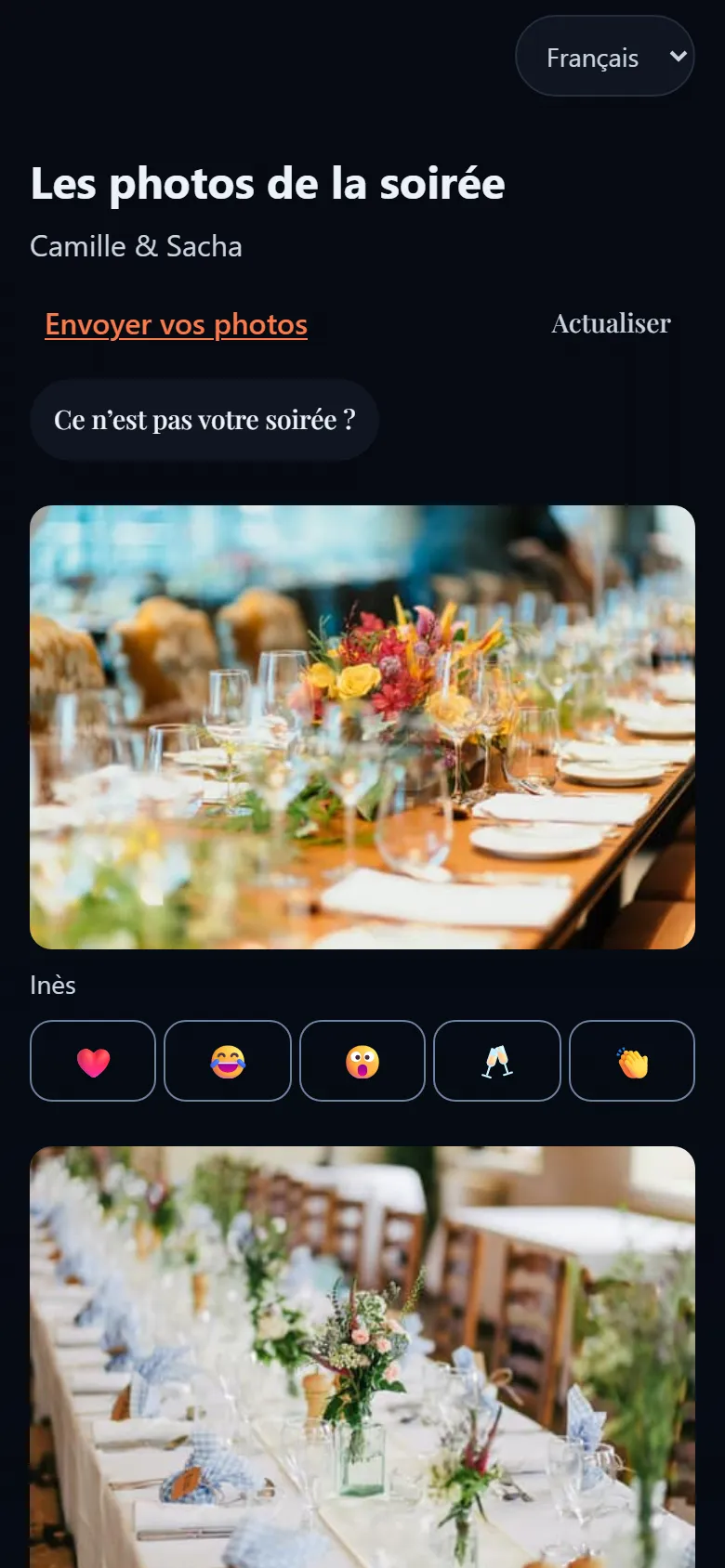
In the evening’s gallery, guests can react to other people’s photos with a simple button. A way to say “well done” without typing anything.
After the party: the shared gallery
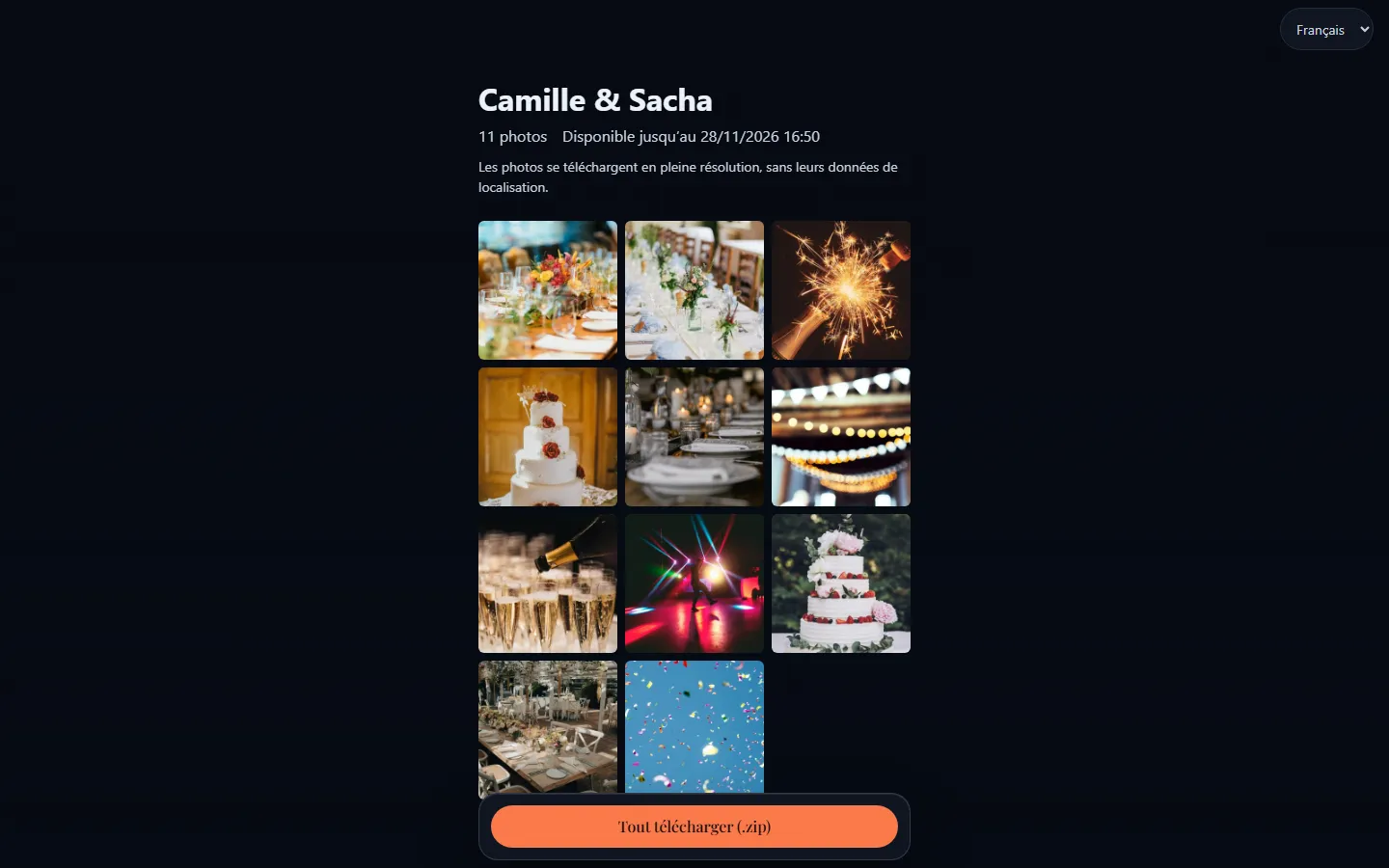
The morning after, everyone asks you for the photos, one by one. A panel on the event page answers them all with a single link.
Choose how long
The link stays open 7, 30 or 90 days, a month if you do not choose. You can add a password of at least 12 characters, to send separately.
Copy the link
The address is shown only once, when you make it: copy it right away. Making a new one switches the old one off.
Send it to everybody
No account to create. They type the password if there is one, then see the album as a grid. Each photo opens larger with a button to download the original, and another one downloads everything as a ZIP file.
What the link hands out, and what it does not
- The photos that were on the wall, in full resolution and without GPS position. A video comes as it was converted, not as the phone filmed it.
- Nothing else: pending, refused or hidden photos are not in it. A photo you take off the wall after sending the link is gone from the album at the next page load.
- At any moment you can switch the link off: nothing opens any more, even in a tab that is already open, and a ZIP halfway through downloading is cut off rather than finished.
Your own copy of the album, including the photos you took off the wall, can be downloaded from the same page.
- A single link
- Full resolution
- Expiry date
- Optional password
Which languages?
French, English, German, Spanish and Italian, across the whole interface: the guest’s phone, the moderation console, the admin pages and the projected wall.
Everyone picks their own from the header, and the app remembers it. The wall is the exception: nobody stands in front of the projector to be asked. Its language is therefore a setting on the event, defaulting to the language you were reading when you created it.
What people write is never translated: the event’s name, captions, first names and prompts are shown exactly as typed. A German wall for a French wedding prints German labels above French prompts, which is the right way round.
The French is written by hand. A native reader has not yet gone over the German, Spanish and Italian on the host and wall screens.
- FRBonjour
- ENHello
- DEHallo
- ESHola
- ITCiao
What kind of party?
The principle is the same everywhere, but every occasion has its habits.
- For a wedding
Every photo your guests take, not only the photographer’s.
- For a birthday or a party
The best moments of the night, live.
- For a corporate event
A simple activity for your teams or your clients.
- For an association
A shared memory for your volunteers and members.
- A question?
All the answers, by topic, in the FAQ.
Request access to EventSlide
Our hosted service is free, by invitation. Ask for access for your next party.
Comfortable with servers?Host EventSlide yourself